Install: the commissioning checklist
The commissioning checklist is the bench test and the lane checks as items to tap, one by one, before the wash takes its first car. Step 10 keeps every answer with who gave it and when.
What people do here
- Work down the list by area: the tunnel, the whole wash, the lanes and the counter. Each item says how to check it and what a pass looks like.
- Answer each one Pass, Fail or Not yet. A Fail needs a note saying what went wrong.
- The top of the list says what is left, like "7 of 31 left; 1 failed".
- When every item is Pass, the installer and an owner sign, each with their own sign-in and their full name typed. The two must be different people.
There is one item for each stop button, each interlock line, each lane's loop, gate, lights, screen, camera and reader, and each counter tablet. The watchdog is checked three ways: stopping the program, pulling the power and pulling the network cable.
When the wiring changes in a new version, the items that check that wiring go back to Not yet. A rename or a timing change keeps the answers.
The bench rig
A module is proved on a bench rig first: modules on a board, a lamp for every output and switches for the inputs. Lamps on hand switches only; no wash equipment on the bench, ever. See the drawing. It costs about $1,000 to $1,700. On a rig, six bench tests come first; when all six pass, step 2 says each module is "Bench-proved", with the date and the name.
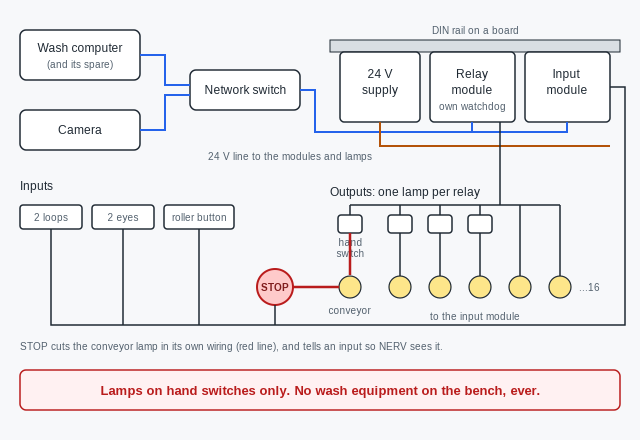
Under the items, four questions to answer on site are answered in words, not ticked.
Safety
No car until sign-off: the tunnel takes no car while the activated version has items open, and says how many. Start every check with every hand switch on OFF and a person at the stop button. Taking the sign-off back stops the tunnel taking cars at once.
Where the numbers come from
The items come from your activated site configuration: its outputs, inputs, interlocks, lanes and counter. The answers and signatures are kept for that version, and each one is a line in Activity.